
Passkeys Explained for Regular People (No Tech Jargon)
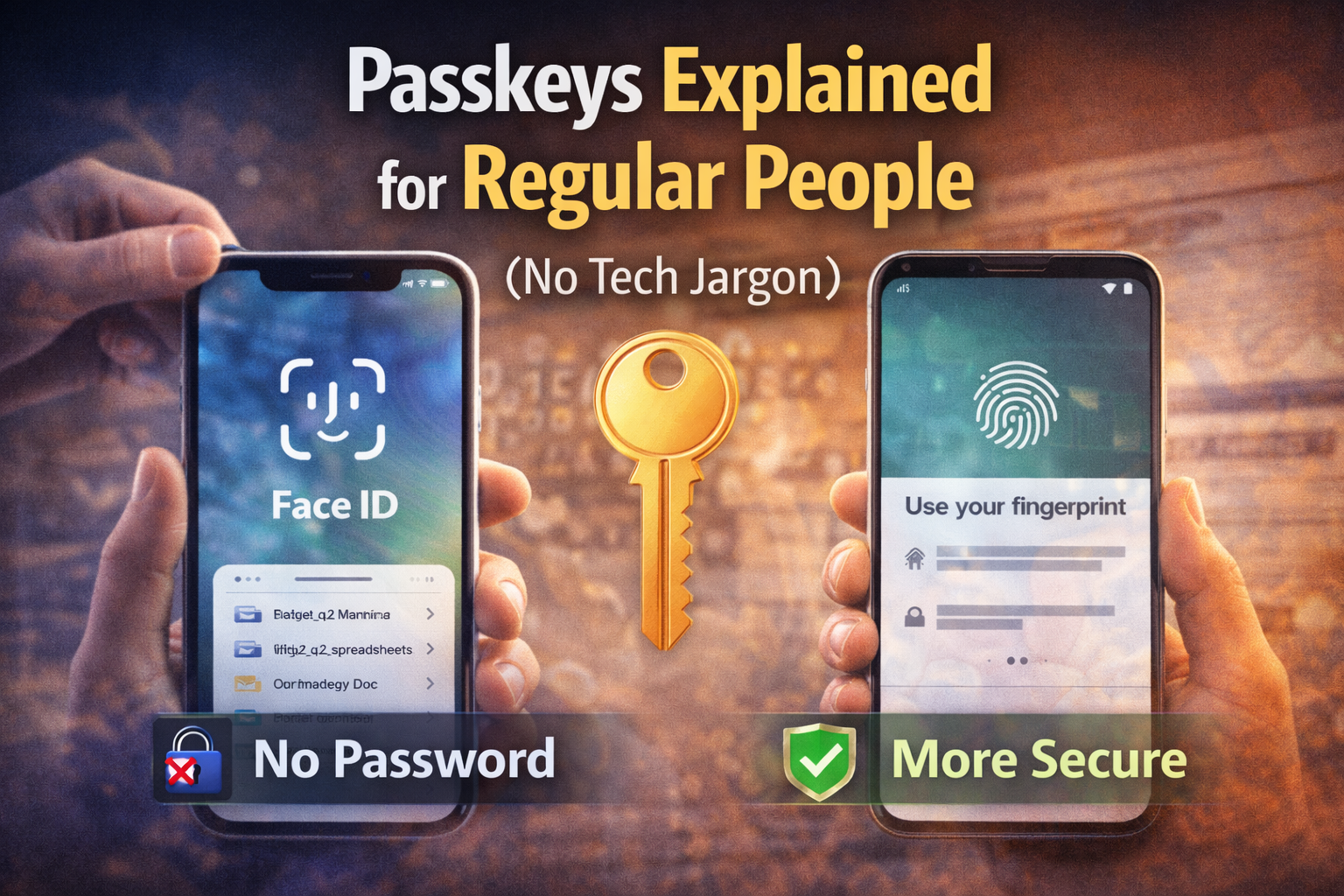
Passwords are annoying. You forget them, you reuse them, they get leaked, and then you spend your life resetting accounts.
Passkeys are the modern replacement: a way to sign in without typing a password, while being more secure than passwords.
Think of passkeys like this:
A passkey is a “digital key” stored on your phone or computer.
To use it, you unlock your device with Face ID, Touch ID, or your PIN.
No password to remember. No password to steal.
Why passkeys exist
Most hacks don’t happen because someone “guessed” your password.
They happen because:
the password was reused somewhere else and leaked
you got tricked by a fake login page (phishing)
a site’s password database got breached
malware grabbed what you typed
Passkeys are designed to make those attacks much harder.
How passkeys work (simple version)
When you create a passkey, your device creates two keys:
a private key (stays on your device, never leaves)
a public key (stored by the website)
When you sign in:
the website asks for proof you have the private key
your device proves it (after Face ID / Touch ID / PIN)
you’re logged in
You didn’t type anything. And even if someone sees the public key, it’s useless without the private key.
The biggest advantage: passkeys stop phishing
With passwords, a fake website can trick you into typing your login.
With passkeys, your device only uses the key for the real website.
So if you’re on “fake-paypal-login.com”, the passkey simply won’t work, because it doesn’t match the real domain.
That’s why security people are excited: phishing is one of the biggest causes of account takeovers, and passkeys directly target it.
Are passkeys the same as “two-factor authentication” (2FA)?
Not exactly.
2FA is usually: password + code
Passkey is: your device + biometric/PIN
Passkeys often give you protection similar to strong 2FA, but with far less friction.
Many services still offer extra verification for sensitive actions, but the core login becomes smoother.
Where passkeys are stored
Passkeys live inside your device’s secure system, for example:
iPhone/iPad: iCloud Keychain
Android: Google Password Manager
macOS: Keychain
Windows: Windows Hello / Microsoft account syncing
That means passkeys can sync across your devices, so you can log in on your laptop after creating it on your phone.
What happens if you lose your phone?
This is the most common worry.
If your passkeys are synced (iCloud/Google/Microsoft), you can recover them by signing into your account on a new phone.
If they’re not synced, you typically fall back to:
a recovery method (email, SMS, backup codes)
or a secondary device that still has the passkey
Bottom line: passkeys don’t “lock you out forever,” but you should still set up recovery options like you would for any account.
Why you still see passwords sometimes
We’re in a transition period.
Some websites support passkeys fully. Others support them partially. Some haven’t added them yet.
That’s why you might see:
“Use passkey” as an option next to password login
passkeys for sign-in, but password for account recovery
passkeys for some devices but not all
Over time, more services will go “passkey-first.”
How to know if passkeys are safe
A passkey is generally safer than a password because:
there’s nothing reusable for attackers to steal
there’s nothing to type into phishing pages
the private key never leaves your device
Face ID / Touch ID is just the “unlock,” not the secret itself
The weak point becomes your device account (Apple ID / Google account). So protecting that account matters.
A simple way to explain it to anyone
If you want a one-liner:
Passwords are something you know. Passkeys are something you have (your device).
And you unlock that device with Face ID / Touch ID / PIN.
The takeaway
Passkeys are a new login method that lets you sign in without passwords, using your phone or computer as the key.
They’re easier for normal people and harder for attackers — especially because they can block phishing.
If you see “Create passkey” in your favorite apps, it’s usually worth enabling.